17 Easy Ways to Backup Client Work
This article will showcase several ways to backup your irreplaceable client work using both offline and online solutions. Find the solution that fits your budget and workflow best and start backing up today.
2 Million+ Digital Assets, With Unlimited Downloads
Get unlimited downloads of 2 million+ design resources, themes, templates, photos, graphics and more. Envato Elements starts at $16 per month, and is the best creative subscription we've ever seen.

The Story
There are two types of people in the world, those who have lost important data and those who will lose important data. Let’s face it, if your work involves a computer, it’s going to happen sooner or later.
My personal story is just like that of countless other designers. There was a client that I had done a ton of work for in a short span of time followed by almost nothing for months. One day I get a call from said client declaring that it was time to pick up where we left off and resume work again. I went to my hard drive to open the folder with that client’s work but something was wrong. The folder was missing. No problem, I probably moved it right? So I ran a search… nothing. I’m still not sure exactly what had happened, I was no doubt purging my hard drive of old, unnecessary files and accidentally threw out the folder containing the client’s work as well.
I started to panic, so much work had been lost, nearly all of which was still in-progress and would have to be rebuilt on my own dime. But alas, as I sat there, staring at my screen, dumbfounded at the cruelty of life, my eyes drifted to my Mac’s menu bar. There, sitting quietly at the top of my screen was an amazing application. I used the application to login to a web interface that contained a complete backup of my client folders. Every change that took place over the last few months had been meticulously recorded and backed-up with virtually no effort on my part. In mere minutes I was downloading the lost folder while tweeting about the glories of free (that’s right free) online backup.
The Obvious Conclusion
If you don’t have a backup system in place, your story won’t have the happy ending that mine did. I simply cannot stress enough the importance of ensuring that your data is securely backed up. After the incident above I went out and hedged my bets further by purchasing a local backup solution as well. I personally recommend that anyone with important information on their computers follow this example and secure both an offline (local) and online backup solution to doubly ensure that they never experience the pain of data loss.
Check out the solutions below to get you on your way to complete backup security.
Outstanding Hardware
Online backup is amazingly convenient and affordable, but there are plenty of instances when you want an on-site, offline copy of your files. Pros include more storage capacity and flexibility, faster data recovery, more security and having access to your data even when your internet connection is down.
Drobo
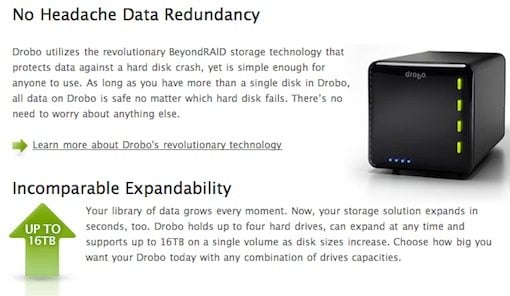
Drobo is the ultimate external hard drive solution for personal or business use. The hardware itself is essentially an expandable hard drive bay. Just plug in a hard drive and it will be backed up with super-advanced BeyondRaid technology that I don’t pretend to understand, though I’m pretty sure it means Drobos are hardcore amazing. With four hard drive bays and up to a whopping 16TB of storage, you’ll be able to backup up enough client work to rival Deviant’s art collection.
Price: Starts at $399, peaks at far more than I can afford.
Time Capsule/Time Machine

If you’ve got a Mac, the combination of a Time Capsule and Time Machine is enough to make you audibly cackle with an overwhelming sense of power and security. Time Capsule, the hardware component, is a 1-2TB external hard drive coupled with a 802.11n Airport Wi-Fi base station. I know what you’re thinking, why don’t all external drives double as wireless routers? The answer evades me.
Time Machine, the software component, is seamlessly integrated into your Mac. Time Machine keeps hourly backups of all your files, making it super easy to go back in time and grab a previous version of a file or recover lost files. When you activate Time Machine you are taken on a beautiful trip through space and through in a simple, easy to use visual interface that makes recovery a no brainer.
Price: $299 (1TB), $499 (2TB)
Local, Offline Backup Software
Don’t have hundreds of dollars to drop on the drives above? No worries, the software below will get you safely backed up to any external hard drive you choose to use.
Synk Backup
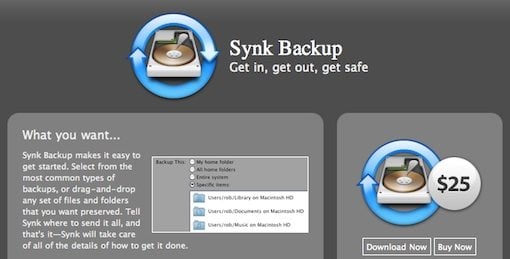
“Synk Backup makes it easy to get started. Select from the most common types of backups, or drag-and-drop any set of files and folders that you want preserved. Tell Synk where to send it all, and that’s it—Synk will take care of all of the details of how to get it done.”
OS: Mac
Price: $25
Smart Backup

Backup, archiving and cloning for the rest of us.
- Straightforward setup
- SmartBackup knows where to find your files
- Backup or exclusion defined by Spotlight
- Backup to Harddisks or Network
- Smart archiving
- Just in case – one click restore
- Easy automation with iCal or Automator
- Pro flexibility: headless mode
OS: Mac
Price: $25
Parachute

Stop worrying, start backing up your files!
- Pick Your Destination
- Multiple Backups
- Schedule Your Backups
- Only backup up what’s changed since your last backup
OS: Mac
Price: $39
Memeo Instant Backup

Easiest one-click backup.
- Back up all files in one step
- Set it and forget it (Continuous Backup)
- Back up to Existing Storage Drives.
- Pick up where you left off if a drive is disconnected
OS: Windows
Price: $29.95
Genie Timeline

Protected for life.
- Windows 7 Support
- Continuous Backup
- Windows Explorer Integration
- Right-Click Add/Restore
- Set it-and-Forget it
- Access Your Files Offline
- Revision History
- Incremental Backup
OS:Windows
Price: $34.95
Online Backup
Now that we’ve covered several local backup solutions, let’s take a look at a few online solutions. Online information backups have come a long way in the past few years, almost to the point of uniformity. Though they differ on pricing and approach, all of the solutions below share nearly the same feature set: effortless online backup, automatic syncing, and easy recovery of lost or changed files. For this reason, I’ll only throw in a description where necessary to point out something important.
Dropbox

In case you were wondering, Dropbox is the software in the story above. I absolutely love Dropbox and encourage everyone I know to sign up. Beyond a mere backup solution, Dropbox also makes it effortless for me to sync files between my home and work computers, share files with my friends and coworkers, and host images and even web pages in a general purpose public folder.
Plans:
2GB: Free
50GB: $9.99/month
100GB: $19.99
Mozy

You’ve seen the iJustine commercials on Hulu, now check out the software she’s always raving about in her funny southern accent. At $4.95 month for unlimited storage, Mozy is amazingly affordable.
Plans:
Home: $4.95/computer/month (unlimited backup)
Business: Desktop Licenses = $3.95 + $0.50/GB per month, Server Licenses = $6.95 + $0.50/GB per month
Carbonite

The infamous Rush Limbaugh is always going on and on about the wonders of Carbonite, you decide if he’s right about it being the best option available.
Plans:
One Year: $54.95
Two Year: $99.95
Three Year: $129.95
iDrive

Plans:
2GB: Free
150GB: $4.95/month or $49.95/year
150GB: $14.95/month or $149.95/year
SOS Online Backup

Recommended by PC magazine, twice! I guess that’s pretty good.
Plans:
2GB: $19.95/year
5GB: $29.95/year
15GB: $49.95/year
(Business plans also available).
Backblaze

Comparable to Mozy in pricing and approach. Also, Backblaze is a really cool name.
Price:
$5 per month per computer or $50 per year per computer
Jungle Disk

Jungle Disk provides and easy interface that allows you to backup to Rackspace Cloud or Amazon S3.
Plans:
Personal: $2-3/month
Business: $4-5/ month
MobileMe

MobileMe provides a ton of features and services to make your Mac experience accessible from anywhere. One of these services is iDisk, which gives you 20GB of online storage space. It’s not an automatic backup solution per se, but worth a mention as an online place to store important data or share files with clients.
Price:
$99/year
Backup Right

Plans:
25GB: $14.95/month or $149.95/year
50GB: $19.95/month or $199.95/year
100GB: $29.95/month or $299.95/year
(and a whole bunch more)
SugarSync
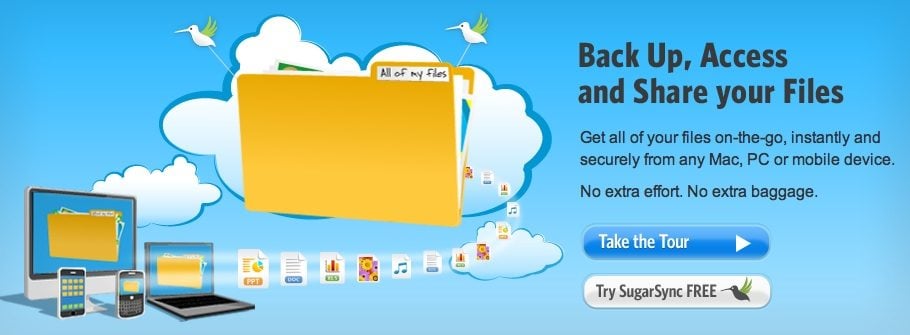
Much like DropBox, SugarSync is both an online backup tool and multi-machine syncing utility with a ton of affordable plans to choose from.
Plans:
30GB: $4.99/month or $49.99/year
60GB: $9.99/month or $99.99/year
100GB: $14.99/month or $149.99/year
250GB: $24.99/month or $249.99/year
(Business plans also available)
Conclusion
So that’s my big fat example-filled argument on backup solutions. Use the comments below to tell us which you think are the best. Also, if you’ve got a system in place not mentioned here, tell us about it and you could win… well nothing. But tell us anyway.